App Permissions
How to resolve permission issues with syncing metrics and activities
1. Intervals.icu OAuth Login Permissions
When you log into Intervals Companion, it connects to your Intervals.icu account using OAuth. During this process, Intervals.icu presents a permission screen where you grant the app access to your data. If Activities or Wellness Data update permissions were not checked, syncing will not work correctly.
The permissions screen should look like this, with Read and Update checked for Activities and Wellness Data:
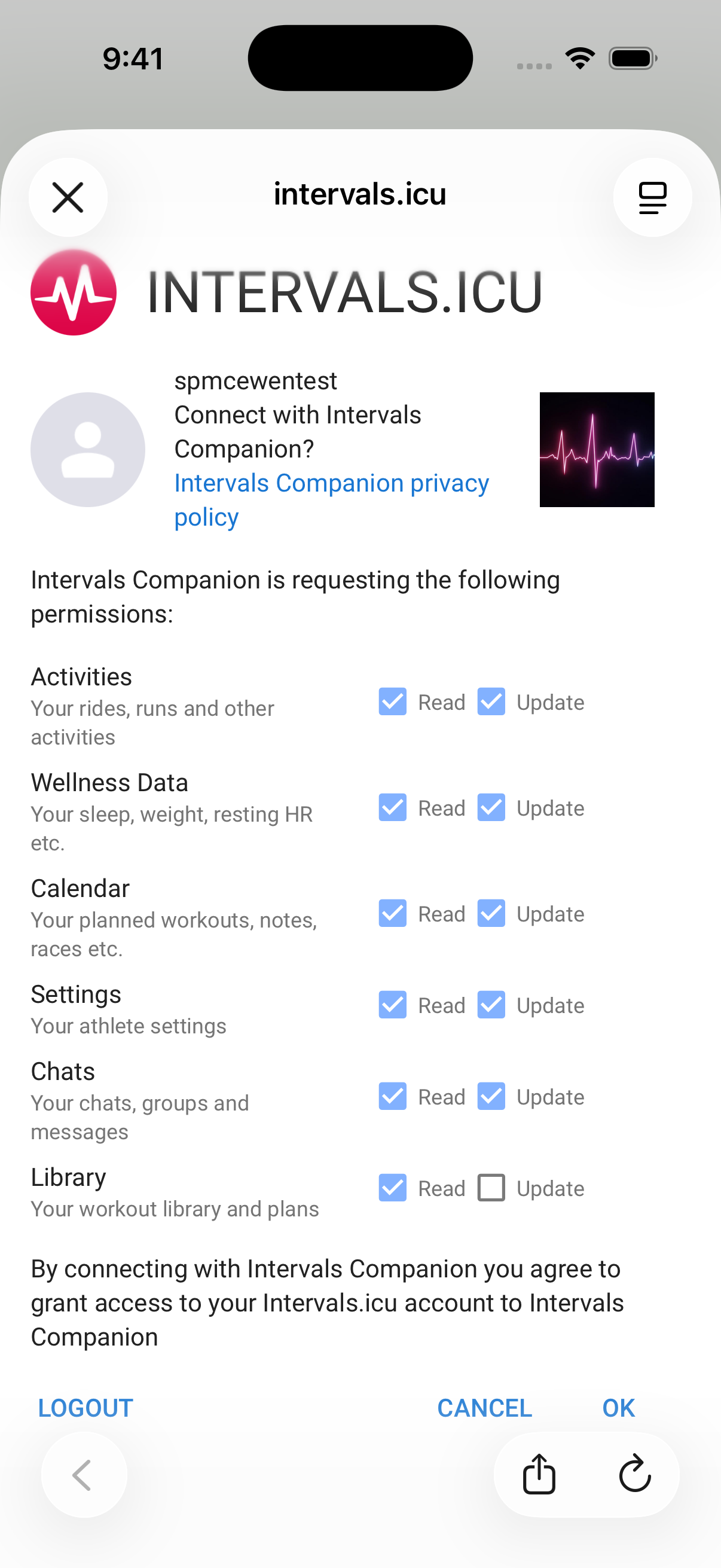
Make sure Activities and Wellness Data have both Read and Update checked
To fix missing permissions:
- Open the Intervals Companion app
- Go to Settings
- Tap Logout
- Log back in with your Intervals.icu credentials
- On the permissions screen, make sure activities and wellness Data both have read and update checked before tapping OK
2. iOS Health Permissions
Intervals Companion needs permission to read from and write to Apple Health. If these permissions were denied or only partially granted, syncing metrics and activities will be incomplete.
Health permissions are managed in iOS Settings, not inside the app. The easiest fix is to enable all permissions:
- Open the Settings app on your iPhone
- Go to Privacy & Security
- Tap Health
- Tap Intervals Companion
- Tap Turn On All at the top of the screen
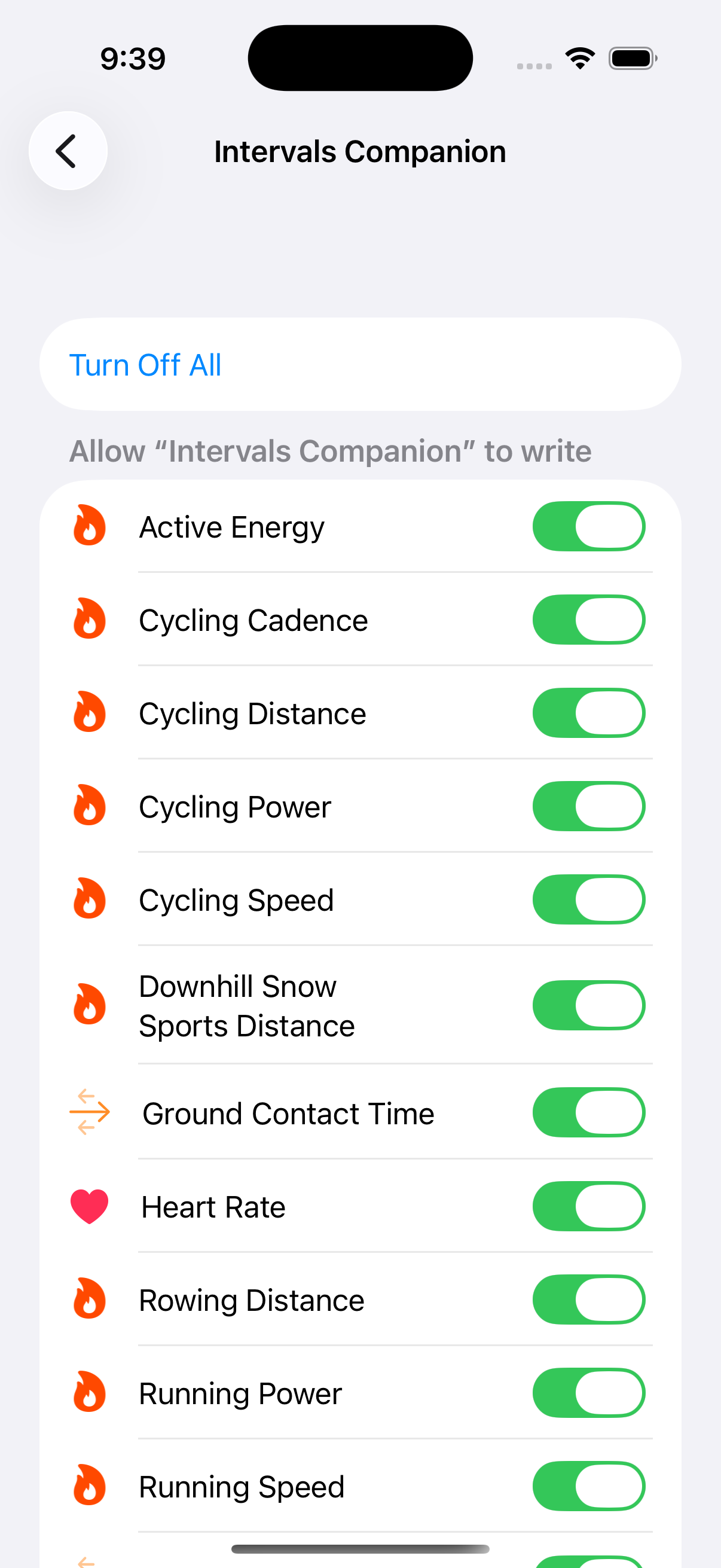
Tap "Turn On All" to grant Intervals Companion full Health access
3. Followed Athletes
Intervals Companion shows an athlete you follow or coach — their profile, activities, feed and comparisons — once that athlete allows apps used by their followers or coaches to access their data. Until then, the athlete does not appear in Followed Athletes or the Feed, and opening one of their activities shows Athlete Data Not Shared. Comment threads you are already part of stay available in Chats.
The athlete allows access in their own Intervals.icu account:
- Go to intervals.icu/settings in a browser
- Open the Apps tab
- Under Who can access your data using apps, choose Your followers, or Your coaches to limit it to coaches